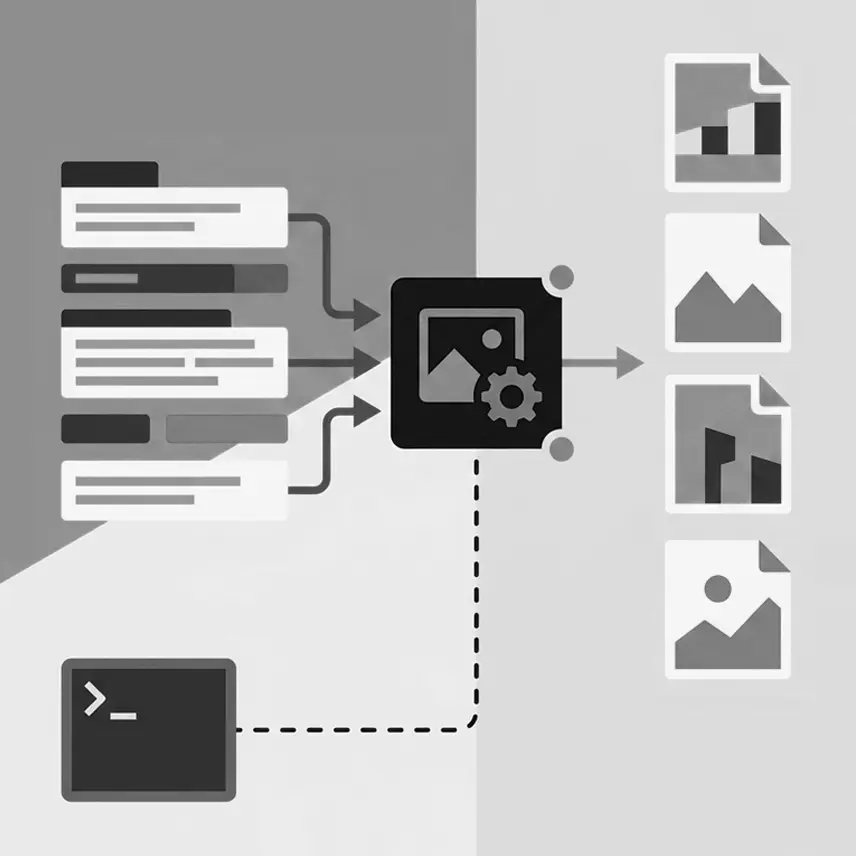
If you have searched for “image_gen tool syntax” or “how to call the image_gen tool in this environment”, you have probably found a lot of pages that do not answer the question. There is a reason for that, and it is the single most useful thing to know up front: the built-in image_gen tool has no public argument schema. You do not call it with a JSON payload, and there is no documented parameter list to memorize. It is a tool the model invokes on your behalf, and everything you control flows through the prompt. The parameters people go looking for — quality, input_fidelity, masks, output paths — are real, but they belong to a different surface: the fallback CLI and the Images API behind it. This guide separates the two, using OpenAI's own imagegen skill as the source, so you stop looking for a schema that was never published. It assumes a local Codex environment — that is where the built-in tool and the $CODEX_HOME paths below apply, and there is a section on what breaks when you leave it.
Key Takeaways
- There is no public argument schema for the built-in tool. You do not hand
image_gena JSON payload. The model calls it; you shape the result through the prompt. - Built-in mode needs no API key.
OPENAI_API_KEYis required only for the fallback CLI. If something is asking you for a key to generate an image in Codex, you are on the wrong path. - Output lands in
$CODEX_HOME/generated_images/. Not the OS temp directory, and there is no destination-path argument on the built-in tool. Generate first, then move the file. quality,input_fidelity, and masks are fallback-only. They are Images API parameters exposed throughscripts/image_gen.py, not built-in tool arguments. This is the single most common source of confusion.- Built-in editing works on images in the conversation, not arbitrary file paths. To edit a local file, load it with
view_imagefirst so it is in context.
What Is the image_gen Tool?
image_gen is a built-in tool in OpenAI Codex that generates and edits raster images — photos, illustrations, textures, sprites, mockups, and transparent-background cutouts. It is built in, meaning it ships with the environment rather than being something you install, configure, or authenticate against.
The tool and the skill are two different things
Almost every confused search about image_gen comes from collapsing two layers that are worth keeping apart:
- The tool is the execution capability the Codex runtime exposes. It is the thing that actually produces pixels, and it is where the absent argument schema lives — that is a property of the tool implementation in this environment.
- The skill is a behavioral wrapper: markdown telling the agent when and how to reach for the tool. That is where the structured prompt spec, the use-case slugs and the save-path rules come from.
The distinction matters practically. A skill can only shape what gets sent — it cannot add parameters to a tool that has none. So when the skill tells you to write a labeled prompt spec, that is not a stylistic preference; it is the only lever available at that layer. And it explains why searching for a schema returns nothing: you are looking for a property of the tool in documentation written about the skill.
OpenAI publishes that skill — imagegen, from the openai/skills repository. It defines exactly two top-level modes:
- Built-in tool mode (the default). Uses the
image_gentool directly. NoOPENAI_API_KEY. No explicit parameters. - Fallback CLI mode (explicit request only). Uses a bundled
scripts/image_gen.py. RequiresOPENAI_API_KEYand network access, and exposes real flags.
The skill is emphatic that an agent should never switch to the CLI on its own. If the built-in tool fails, the correct behavior is to tell you the fallback exists and wait for you to ask for it.
How Do You Call image_gen?
You do not call it directly. You ask for an image, and the model invokes the tool. There is no command to type and no function signature to fill in. In practice that means the quality of your request is the quality of your interface.
This is the answer to the most common version of the question — “how do I call the image_gen tool in this environment?” — and it disappoints people because it sounds like a non-answer. It is not. It has a concrete consequence: everything you would otherwise pass as a parameter has to be expressed in the prompt instead, and there is a documented structure for doing that. See the prompt spec below.
For multiple assets or variants, the skill is specific: issue one image_gen call per asset. There is no batch parameter in built-in mode. Batching exists only as the CLI’s generate-batch subcommand.
Why There Is No image_gen Argument Schema
Searches for image_gen tool schema and internal-looking identifiers such as image_gen.text2im or gen_id are common, and they mostly come back empty. That is expected: those are internal identifiers that surface in some hosted environments, not a supported public interface. Building against them is building against something nobody promised to keep stable.
OpenAI’s skill goes further and warns against inferring arguments that look like they should exist. Two specific prohibitions are worth quoting in spirit:
Do not describe or rely on a destination-path argument (if any) on the built-in image_gen tool.
quality, input_fidelity, explicit masks, background, output_format and related parameters are fallback-only execution controls. Do not assume they are built-in tool arguments.
So there are two genuinely documented surfaces. The built-in tool, steered by prompt. And the Images API — POST /v1/images/generations and POST /v1/images/edits — which has a real, published parameter list. What does not exist is a public schema for calling the built-in tool as if it were the API.
Is image_gen Available in My Environment?
The practical test is to ask for an image and see what happens. There is no capability endpoint to query, which is why “image_gen tool availability” is such a frequent and frustrating search.
What you can reason about is the failure mode. If the tool is unavailable, the documented behavior is that the agent tells you the CLI fallback exists and that it needs OPENAI_API_KEY — and then stops, rather than silently switching. If your agent is asking for an API key before generating anything, that is the signal that built-in mode is not in play.
A useful sanity check: the fallback CLI has a --dry-run flag that requires neither network access nor the openai package. It prints the API payload and the computed output path, which tells you whether the skill and its scripts are installed correctly without spending anything.
The Actual Syntax: A Structured Prompt Spec
Since the prompt is the interface, the skill defines a labeled spec to structure it. This is the closest thing to “image_gen syntax” that actually exists, and it applies to both modes:
Use case: <taxonomy slug>
Asset type: <where the asset will be used>
Primary request: <your main prompt>
Input images: <Image 1: role; Image 2: role>   (optional)
Scene/backdrop: <environment>
Subject: <main subject>
Style/medium: <photo/illustration/3D/etc>
Composition/framing: <wide/close/top-down; placement>
Lighting/mood: <lighting + mood>
Color palette: <palette notes>
Materials/textures: <surface details>
Text (verbatim): "<exact text>"
Constraints: <must keep/must avoid>
Avoid: <negative constraints>
Use only the lines that help — it is scaffolding, not a required schema. Two of those lines are traps worth calling out. Asset type and Input images are prompt text, not CLI flags. And Scene/backdrop is the visual setting, which is not the same as the CLI’s background parameter — that one controls output transparency.
Use-case slugs
The skill classifies every request into one of sixteen buckets, and keeping the slug consistent across prompts measurably helps.
| Generate | Edit |
|---|---|
photorealistic-natural | text-localization |
product-mockup | identity-preserve |
ui-mockup | precise-object-edit |
infographic-diagram | lighting-weather |
logo-brand | background-extraction |
illustration-story | style-transfer |
stylized-concept | compositing |
historical-scene | sketch-to-render |
A worked example
Use case: product-mockup
Asset type: landing page hero
Primary request: a minimal hero image of a ceramic coffee mug
Style/medium: clean product photography
Composition/framing: wide composition with usable negative space for copy
Lighting/mood: soft studio lighting
Constraints: no logos, no text, no watermark
Where Generated Images Are Saved
In built-in mode, Codex saves generated images under $CODEX_HOME/generated_images/. CODEX_HOME defaults to ~/.codex.
Two things follow that catch people out. It is not the OS temp directory, so do not go looking in /tmp. And because there is no destination argument, the workflow for getting an image where you actually want it is: generate first, then move or copy the selected output.
The skill treats this as a correctness rule rather than a style preference: an asset the project references must never be left sitting at the default generated-images path. If your build points at ~/.codex/generated_images/…, it will break on any other machine.
This assumes a local environment
Everything above describes a local Codex install, and the generate-then-move workflow quietly depends on a persistent local filesystem. That assumption does not survive a move to a container or a serverless runtime.
In a container, $CODEX_HOME resolves inside the container filesystem, so anything written there disappears when it exits unless you have mounted a volume for it. On a serverless runtime the same applies with a shorter fuse, and concurrent invocations do not share the directory at all. If you are orchestrating an agent in either, treat the default path as scratch space and copy anything you intend to keep into object storage as part of the same step that generates it — do not let a later step assume the file is still there.
Worth being explicit: OpenAI’s skill documents the local behavior only. It says nothing about containerized or hosted deployments, so the guidance above is the standard ephemeral-filesystem precaution applied to this path — not a documented contract.
Editing an Image That Already Exists
Built-in edit mode operates on images that are visible in the conversation — attached by you, or generated earlier in the same thread. It does not take a filesystem path.
To edit a local file, load it into context first with the built-in view_image tool, then describe the edit. If you genuinely need direct file-path control, masks, or explicit fidelity settings, that is the CLI’s job.
One technique matters more than any parameter: state your invariants, and restate them every iteration. Phrase edits as “change only X; keep Y unchanged”. Models drift across turns, and repeating the constraint is what stops the drift.
Use case: precise-object-edit
Asset type: product photo background replacement
Primary request: replace only the background with a warm sunset gradient
Constraints: change only the background; keep the product and its
  edges unchanged; no text; no watermark
The CLI Fallback, and When It Is the Right Call
scripts/image_gen.py is the escape hatch. Reach for it when you need something the built-in tool genuinely cannot express: an explicit mask, high input fidelity, a deterministic output path, a specific output format, or a batch run from a JSONL file.
It has three subcommands — generate, edit, and generate-batch — and it needs OPENAI_API_KEY plus network access for real calls.
export CODEX_HOME="${CODEX_HOME:-$HOME/.codex}"
export IMAGE_GEN="$CODEX_HOME/skills/.system/imagegen/scripts/image_gen.py"

# Dry run — no API call, no network, no openai package needed
python "$IMAGE_GEN" generate \
  --prompt "Test" \
  --out output/imagegen/test.png \
  --dry-run

# Real generation
python "$IMAGE_GEN" generate \
  --prompt "A cozy alpine cabin at dawn" \
  --size 1024x1024 \
  --out output/imagegen/alpine-cabin.png

# Edit
python "$IMAGE_GEN" edit \
  --image input.png \
  --prompt "Replace only the background with a warm sunset" \
  --out output/imagegen/sunset-edit.png
CLI defaults: model gpt-image-1.5, size 1024x1024, quality auto, format png. Intermediates belong in tmp/imagegen/ and finals in output/imagegen/. Dependencies install with uv pip install openai, plus pillow only if you need downscaling.
Batch generation and concurrency
generate-batch is the one place concurrency is an explicit control rather than an unknown. It reads jobs from a JSONL file, requires --out-dir, and takes --concurrency (default 5) to bound parallelism.
cat > tmp/imagegen/prompts.jsonl << 'EOF'
{"prompt":"Gray wolf in profile in a snowy forest","use_case":"photorealistic-natural","size":"1024x1024"}
{"prompt":"Cavernous hangar interior, compact shuttle","use_case":"stylized-concept","size":"1536x1024"}
EOF

python "$IMAGE_GEN" generate-batch   --input tmp/imagegen/prompts.jsonl   --out-dir output/imagegen/batch   --concurrency 5
Per-job overrides go in the JSONL itself — size, quality, background, output_format, output_compression, moderation, n, model, out and the prompt-augmentation fields. Note the difference between the two ways of getting multiple images: --n produces variants of one prompt; generate-batch is for many different prompts.
Retry and failure controls
The CLI also exposes --max-attempts and --fail-fast for retry behavior, plus --prompt-file, --downscale-max-dim, --no-augment (skip prompt augmentation) and --force. One constraint that catches people: transparent backgrounds require output_format to be png or webp — ask for transparency with a jpeg and you will not get it.
Do not modify the script, and do not write your own wrapper. The skill is explicit about both. If something is missing, the correct move is to ask rather than to fork a one-off runner that then drifts from the maintained version.
Image API Parameter Reference (Fallback Only)
These are the parameters behind the CLI, from the Images API for GPT Image models (gpt-image-1.5, gpt-image-1, gpt-image-1-mini). To say it once more, because it is the thing everyone gets wrong: these are not built-in image_gen arguments.
| Parameter | Values | Notes |
|---|---|---|
prompt | text | The request itself |
n | 1–10 | Number of images |
size | 1024x1024, 1536x1024, 1024x1536, auto | Larger costs more latency |
quality | low, medium, high, auto | generate, edit, batch |
background | transparent, opaque, auto | Output transparency — not the scene |
output_format | png, jpeg, webp | png is the default |
output_compression | 0–100 | jpeg/webp only |
moderation | auto, low | auto is the default |
image | up to 16 images | Edit only |
mask | image | Edit only; prompt-guided, not exact |
input_fidelity | low (default), high | Edit only; high raises input token usage |
Latency and cost
The reference is direct about the trade-off without putting numbers on it: large sizes and high quality increase latency and cost, and high input_fidelity can materially increase input token usage. Image generation is slow enough relative to text that it will dominate a turn, so in built-in mode the agent’s reasoning loop waits on it. That is a reason to be deliberate about n and size rather than generating variants speculatively.
Model-specific behavior worth knowing: gpt-image-1 and gpt-image-1-mini preserve every input image but give the first one richer texture and detail, while gpt-image-1.5 preserves the first five at higher fidelity. Inputs and masks must be under 50MB.
What OpenAI Does Not Document
If you are deciding whether to build on this rather than just get an image out of it, the useful thing is knowing where the documented surface ends. These questions have no published answer in the skill, the CLI reference or the Images API reference. They are listed rather than guessed at, because a plausible-sounding answer here is worse than none.
| Question | Status |
|---|---|
| Execution boundary — does the tool run in-process, proxy to an OpenAI endpoint, or something else? | Not documented. Matters for diagnosing latency and network failures. |
| Invocation lifecycle — how the call is issued, whether calls can run in parallel, how the output path re-enters the model’s context | Not documented for built-in mode. The skill only says to issue one call per asset. |
| Rate limits in built-in mode | Not documented. The CLI path inherits ordinary API limits; whether built-in has its own is unstated. |
| Timeouts — what happens when generation runs long | Not documented. |
| Concurrency in built-in mode | Not documented. Only the CLI exposes it, as --concurrency on generate-batch. |
| Caching — is an identical prompt regenerated? | Not documented. Assume regeneration and cost. |
| Prompt-injection resilience of the prompt spec — can injected text override a stated constraint? | Unmeasured. The constraints are prose in a prompt, not enforced parameters, so treat them as guidance rather than a guarantee. |
Two things that are documented and worth reading as security properties. The built-in tool has no destination-path argument, so it cannot be steered into writing to an arbitrary location — output lands in $CODEX_HOME/generated_images/ and moving it is a separate, deliberate step. And on the CLI path the skill is explicit that you should never paste OPENAI_API_KEY into a chat — set it as an environment variable locally and confirm, so the key never enters a transcript.
If you need certainty on any row above, measure it in your own environment rather than trusting a write-up. That includes this one.
Common Failures and What They Mean
| Symptom | Likely cause |
|---|---|
| Asked for an API key to generate an image | You are on the CLI path. Built-in mode never needs one. |
| Cannot find the generated file | Look in $CODEX_HOME/generated_images/, not /tmp. |
| Edit ignored the local file you named | Built-in edit needs the image in conversation context — load it with view_image first. |
Passing quality or input_fidelity had no effect | Fallback-only parameters. They do not exist on the built-in tool. |
| Transparent background not honored | Transparency is the CLI’s background parameter; in built-in mode ask for a cutout in the prompt (background-extraction). |
| Asset broke on another machine | Something references the default generated-images path instead of a copy inside the project. |
| Request fails on an unsupported option | Not every GPT Image model takes every parameter — retry without it. |
Frequently Asked Questions
How We Verified This
Everything above comes from OpenAI’s own imagegen skill in the openai/skills repository — the SKILL.md at skills/.system/imagegen/ plus its references/cli.md and references/image-api.md, read on 2 September 2026.
We have deliberately not documented internal identifiers such as image_gen.text2im or gen_id. They are not part of any published interface, and writing them up as though they were would be inventing an API contract nobody offered.
Where a question has no published answer — execution boundary, rate limits, timeouts, caching, prompt-injection resilience — this guide says so rather than filling the gap. That list is in What OpenAI Does Not Document.
You can read the skill yourself on its directory page, which renders the upstream SKILL.md at the commit we captured it from, or install it with npx skills add openai/skills@imagegen.
Now It's Your Turn
The reason image_gen feels undocumented is that most of what people search for belongs to the fallback path rather than the built-in tool. Built-in mode is deliberately narrow: a prompt goes in, an image lands in $CODEX_HOME/generated_images/, and the structure of your prompt is the whole interface. The CLI exists for the cases that genuinely need explicit control — masks, input fidelity, deterministic output paths, batch runs — and it costs you an API key and network access to get there. Knowing which surface you are on is most of the battle, and it is the part the error messages never tell you.
Browse All Skills